


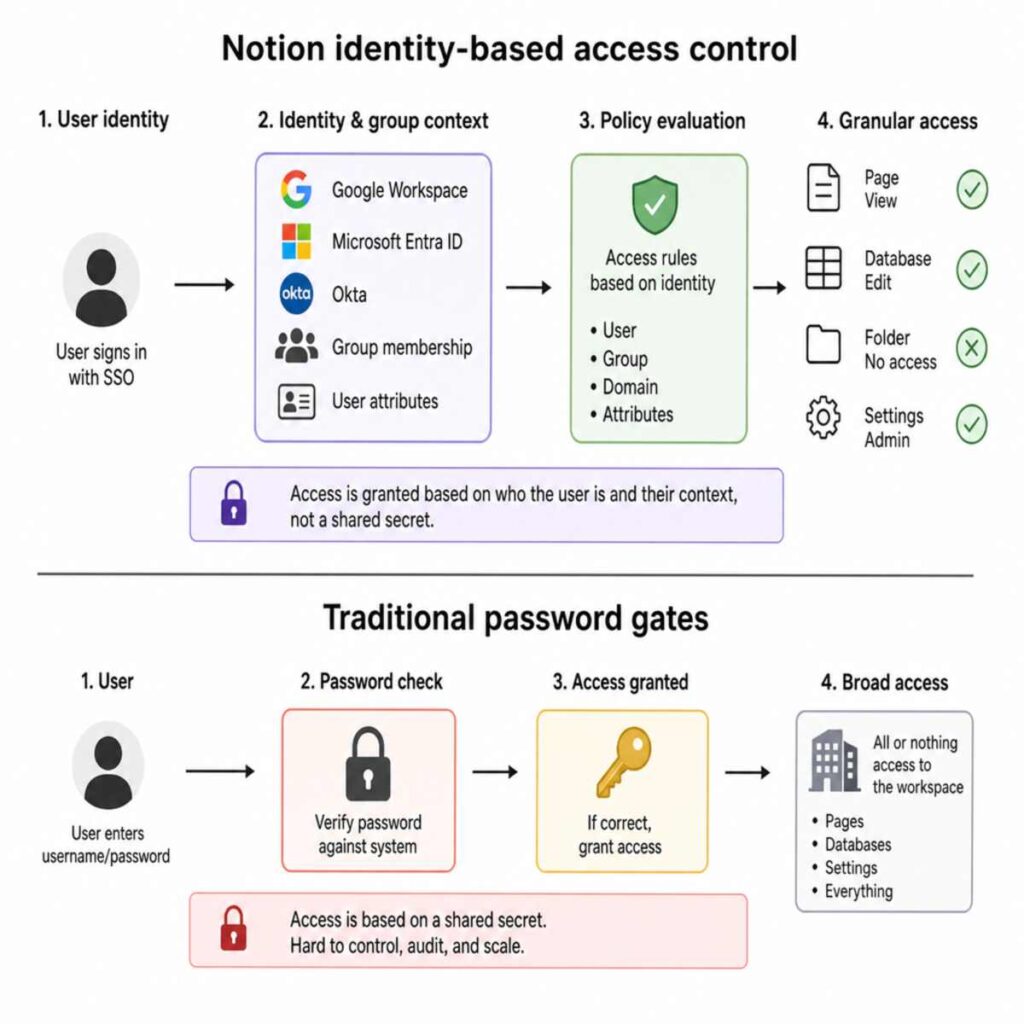
If you are using Notion to manage your life, your business, or your client projects, you already know how incredibly versatile the platform is. From tracking daily habits to building complex company wikis, Notion’s block-based architecture allows you to create almost anything. However, as you begin storing more sensitive information—financial records, proprietary business processes, or private client data—a critical question inevitably arises: how do you properly secure it? The Interesting Info about share notion page with password.
You are likely looking for a straightforward way to password protect notion page access. After all, sharing a simple link can feel incredibly vulnerable when it leads to confidential documents. While Notion is a powerhouse for productivity and collaboration, its native approach to security and access management is somewhat unconventional compared to traditional document editors.
In this comprehensive, step-by-step guide, we will dive deep into everything you need to know about securing your workspace. Whether you are an individual trying to understand the nuances of notion privacy settings for individuals, an agency looking to secure notion pages for clients, or a business manager needing to manage workspace member permissions effectively, this guide has you covered.
We will explore native permission controls, database locking mechanisms, the best third-party tools for adding actual password gates, and even encrypted alternatives for your most sensitive data.
Let’s secure your workspace.
Table of Contents
The Current State of Notion Security
Before we dive into the technical tutorials, it is crucial to understand how Notion handles security at a foundational level. Many new users search for a simple button to password protect notion page documents, expecting a feature similar to Microsoft Word or Adobe Acrobat where a pop-up demands a password before the document opens.
As of right now, Notion does not have a native, built-in “password protect” button that applies a universal password gate to a standalone public page.
However, this does not mean your data is exposed. Instead of relying on a single shared password (which is often inherently insecure because passwords can be easily forwarded or leaked), Notion relies on identity-based access control. This means you grant access to specific individuals via their email addresses, and Notion verifies their identity when they log in.
If you truly need to add a traditional password gate to a public-facing Notion page, you will need to utilize third-party website builders that sit on top of Notion. We will cover the best notion password protection tools in detail later in this guide. First, let us master the powerful native tools you already have at your disposal.
Mastering Native Access Controls: The Foundation of Notion Security
To prevent unauthorized access to notion workspaces, you must first master the native sharing menu. Every page in Notion has its own set of permissions that operate under a top-down inheritance model. This means that if you share a top-level page with someone, they automatically gain access to every page nested inside it, unless you specifically tell Notion otherwise.
Understanding Notion Privacy Settings for Individuals
For solo users, managing privacy is relatively straightforward. By default, every new page you create in your private workspace is completely hidden from the outside world.
To review your individual privacy settings:
- Open any Notion page.
- Click the Share button in the top right corner.
- Ensure the Share to web toggle is completely disabled.
As long as that toggle is off, and you have not explicitly invited anyone via email, your page is secure. No one can access it, even if they somehow guess the URL.
Restricting Notion Link Access
The most common security mistake Notion users make is turning on the “Share to web” feature and assuming that because the URL is a long string of random characters, no one will ever find it. This is known as “security through obscurity,” and it is a highly risky practice.
If you must share a page to the web, you need to understand notion public page restrictions to minimize risk:
- Link Expiration (Paid Plans): If you are on a paid Notion plan, you can set your public links to expire after a certain date. This is an excellent way to restrict notion link access for short-term collaborations or time-sensitive portfolio sharing.
- Search Engine Indexing: In the “Share to web” menu, there is a toggle for “Search engine indexing.” If this is turned on, Google can crawl your page and display it in search results. Unless you are using Notion to host a public blog or website, always keep this turned off.
- Duplicate as Template: Turn this off to prevent viewers from copying your proprietary layouts and data into their own workspaces.
Notion Workspace vs Guest Permissions
As you scale from an individual user to a collaborative environment, the complexity of access management increases. Understanding the difference between notion workspace vs guest permissions is vital to maintaining a secure environment.
Workspace Members: These are individuals within your organization (usually sharing your company email domain) who have broad access to the workspace. When you add someone as a Member, they can generally see all pages listed in the “Workspace” section of the sidebar. You pay for each Member on your Notion billing plan.
Guests: external collaborators—freelancers, clients, or temporary contractors. You invite them to specific pages, not the entire workspace. Guests are free, but they can only see the exact pages (and nested subpages) you explicitly invite them to.
Actionable Tip: If you want to secure notion pages for clients, always invite them as Guests, never as Members. Create a dedicated “Client Portal” page, invite the client using their email address as a Guest with “Can Comment” or “Can View” permissions, and store all their project deliverables there. They will never see your internal company pages.
How to Manage Workspace Member Permissions
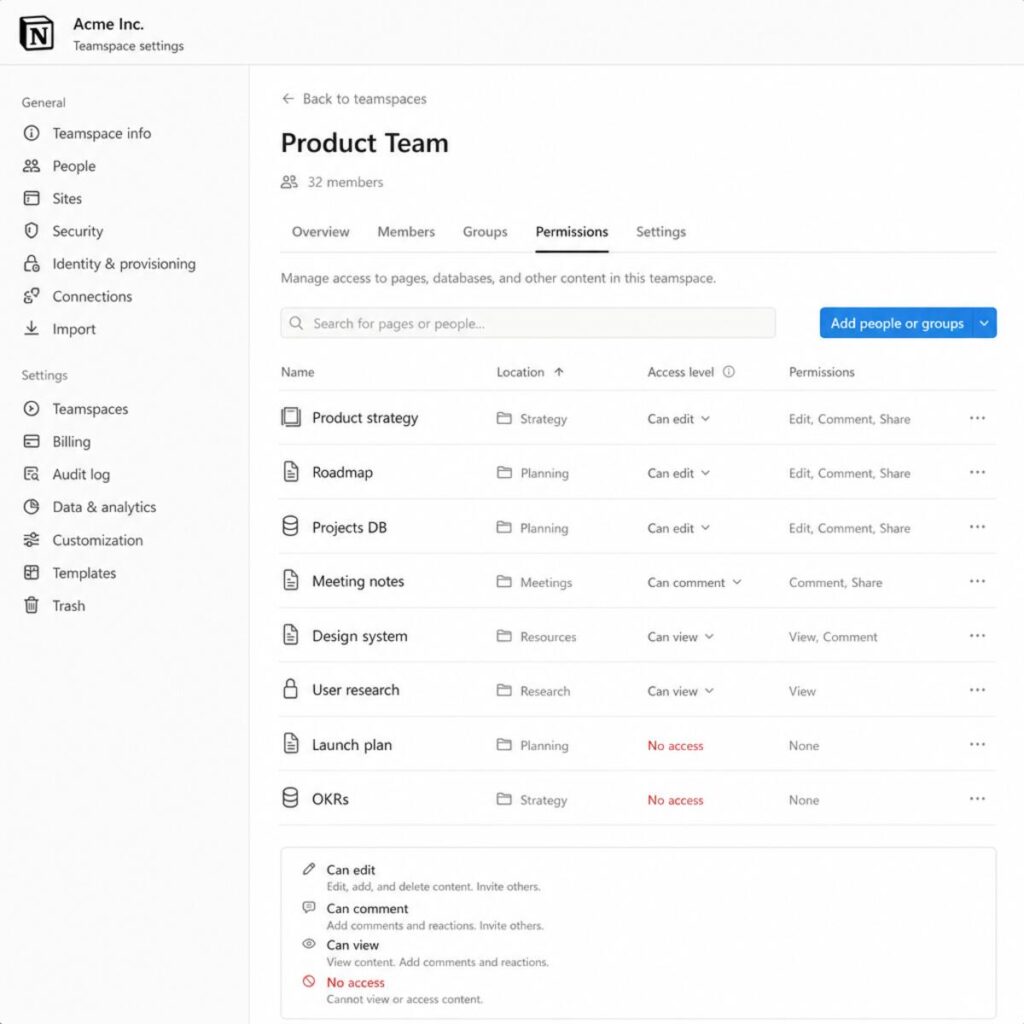
Even within your own team, not everyone should have access to everything. A junior employee does not need access to the executive team’s financial projections. To manage workspace member permissions securely:
- Use Teamspaces: Instead of a single massive workspace, break your company into Teamspaces (e.g., Marketing, Engineering, HR).
- Adjust Default Access: Click the three dots next to a Teamspace and go to settings. You can set the default access for all workspace members to “No Access,” meaning only specific invited individuals can see that division’s data.
- Page-Level Restrictions: For highly sensitive documents within a Teamspace, click Share, find the “Workspace” or “Teamspace” group, and change their permission from “Full Access” to “No Access.” Then, manually add the specific individuals who need to see the page.
Advanced Native Security: Databases, Folders, and Subpages
Notion’s true power lies in its databases, but databases introduce unique security challenges. Because Notion pages act as folders, managing the hierarchy requires a strategic approach.
Can You Password Protect Notion Folders?
Many users transitioning from Windows File Explorer or Google Drive ask: can you password protect notion folders?
In Notion, there is no such thing as a traditional “folder.” Instead, every page can act as a folder containing other pages (subpages). Therefore, you cannot slap a password onto a folder. Instead, you restrict access to the top-level page. Because of the top-down inheritance model, restricting access to the parent page automatically restricts access to all the subpages housed within it.
How to Hide Notion Subpages
Sometimes you want a team member or guest to see the main dashboard, but you need to hide a specific subpage within it.
Here is exactly how to hide notion subpages to establish granular notion page access control:
- Navigate to the specific subpage you want to hide.
- Click the Share button at the top right.
- You will see a list of people who have access. Next to their names, you will likely see text indicating that their access is “Inherited from” the parent page.
- Click the dropdown menu next to the person (or group) you want to restrict.
- Select Remove access or Restrict.
The individual will still be able to see the main parent page, but the specific subpage will completely disappear from their view. It will not even show up as a locked link; it simply ceases to exist in their Notion interface.
How to Lock Notion Database Elements
Databases (tables, boards, lists) are often the engines of a Notion workspace. Protecting the integrity of this data is critical. There are two distinct concepts here: locking the structure of a database and restricting the data within it.
1. Locking the Database Structure: If you have spent hours building a complex Kanban board with specific filters, sorting rules, and custom properties, you do not want a well-meaning team member accidentally deleting a column.
To learn how to lock notion database structures:
- Open your database as a full page.
- Click the three dots (….) in the top-right corner.
- Select Lock database.
When a database is locked, users can still add, edit, or delete rows of data (the content), but they cannot change the properties, alter views, or modify filters.
2. Restricting Database Data: If you need to prevent users from editing the data entirely, you must use the standard Share menu. Change the permission for the relevant users from “Can Edit” to “Can Read” or “Can Comment.”
Important Note: Notion does not currently support row-level permissions natively. If someone has access to a database, they can see every row in that database. You cannot hide specific rows for specific users using native database settings. If you need row-level privacy, you must create separate, linked databases in separate private pages.
Third-Party Solutions: The Best Notion Password Protection Tools
We have established that native Notion security relies on email-based identity verification. But what if you are selling a digital product, sharing a portfolio, or distributing a media kit, and you genuinely need a traditional, universal password prompt?
Because the community has been requesting this feature for years, a robust ecosystem of third-party developers has stepped in to fill the gap. Let’s explore the best notion password protection tools available today.
Protecting Notion Content with Super.so
Super.so is arguably the most popular platform for turning Notion pages into high-performing, SEO-optimized websites. Alongside custom domains and custom CSS, Super offers robust security features, making protecting notion content with super.so an industry standard for creators and businesses.
How Super.so Password Protection Works: Super acts as a reverse proxy. It takes your public Notion page, wraps it in its own code, and serves it to the visitor. Because Super controls the page’s delivery, it can intercept the visitor and require a password before displaying the Notion content.
Step-by-Step Guide to Password Protect Notion Page via Super:
- Prepare Your Notion Page: Ensure your main Notion page is set to “Share to web.” (Do not worry, Super will mask the ugly Notion URL).
- Create a Super Account: Sign up at Super.so and create a new site by pasting your public Notion URL.
- Upgrade to a Paid Plan: Password protection is a premium feature that requires a paid subscription (typically around $16/month per site).
- Navigate to Site Options: In your Super dashboard, go to the settings for your specific site.
- Enable Password Protection: Locate the “Security” or “Page Protection” tab.
- Set Your Password: Enter the universal password you want to require. You can apply this password to the entire site or restrict it to specific subpages.
- Customize the Login Screen: Super allows you to brand the password entry page with your logo and brand colors, providing a professional experience for your users.
Pros of Super: Incredibly easy to use, beautiful custom password screens, great SEO benefits for the non-password-protected parts of your site. Cons: It requires a monthly subscription, which might not be viable for casual users.
Setting Up Fruition for Notion
If you are technically inclined and want a free, open-source method to password protect notion page URLs, Fruition is your best bet. Fruition uses Cloudflare Workers to mask your Notion URLs and allows you to inject custom scripts—including basic password gates.
What is Fruition? Fruition is a free, open-source toolkit that helps you build websites with Notion and custom domains. While its primary goal is vanity URLs, using Cloudflare Workers lets you add a layer of authentication.
A High-Level Guide on Setting up Fruition for Notion for Security:
- Purchase a Domain: You will need a custom domain name from a domain registrar such as Namecheap or Google Domains.
- Create a Cloudflare Account: Cloudflare offers a generous free tier. Add your domain to Cloudflare and update your nameservers at your registrar.
- Generate the Fruition Script by Visiting the open-source Fruition website. Enter your Notion workspace URL and custom domain. The site will generate a large block of JavaScript code.
- Modify the Script for Passwords: Before pasting the script into Cloudflare, you will need to add a basic HTTP basic authentication script. (You can find open-source Cloudflare Worker authentication scripts on GitHub). You essentially tell the worker: If a user visits this specific path, prompt for a username and password before loading the Fruition/Notion script.
- Deploy the Cloudflare Worker: Go to “Workers & Pages” in Cloudflare, create a new worker, paste your modified code, and deploy.
- Set Up Routing: Tell Cloudflare to route traffic from your custom domain through the worker.
Pros of Fruition: 100% free (aside from your domain cost), highly customizable for developers. Cons: Requires technical knowledge, maintenance when APIs change, and a basic browser-level password prompt, not a beautifully branded screen.
Other Notable Third-Party Tools
While Super and Fruition are the heavyweights, other website builders offer ways to notion password protect page content:
- Potion.so: Similar to Super, Potion specializes in turning Notion into websites. It offers a very user-friendly interface for locking specific pages behind a password. It is slightly faster to set up than Super for purely structural sites.
- Bullet.so: A newer player in the Notion website builder space, Bullet focuses heavily on blogging and knowledge bases. They offer built-in page-gating features, allowing you to restrict access with passwords or member logins (integrating with tools like Memberstack).
- NotionApps: If your goal isn’t just to display a page, but to create a functional app from your Notion databases, NotionApps allows you to build client portals with actual user logins, effectively acting as an advanced way to password protect notion data.
Practical Use Cases: Why You Need to Secure Your Notion Workspace
Understanding the “how” is only half the battle. Knowing “when” and “why” to deploy these security measures ensures you aren’t creating unnecessary friction for yourself or your team. Let us examine some real-world scenarios.
Secure Notion Pages for Clients
Agencies, freelance designers, consultants, and accountants frequently use Notion to create “Client Portals.” These portals house project timelines, deliverables, invoices, and meeting notes.
Leaving a client portal open via a standard “Share to web” link is highly unprofessional and risky. If that link is intercepted, sensitive business strategy or financial data could be exposed.
The Best Practice Workflow for Clients:
- Create a Master “Client Portals” page in your private workspace.
- Inside, create a new subpage for “Client A”.
- Do not turn on “Share to web.”
- Instead, click Share, type in the client’s email address, and invite them as a Guest.
- If you must use a public link because the client refuses to create a free Notion account, this is exactly the scenario where you should use a tool like Super.so to password-protect access to Notion pages. Generate the site, set a password, and send it to the client via a secure channel (such as Signal or a secure password manager sharing feature).
Internal Team Wikis and HR Portals
Startups love using Notion as an internal wiki. It houses everything from the company holiday calendar to employee onboarding documents. However, an HR portal inherently contains sensitive data.
To prevent unauthorized access to notion HR databases:
- Create an isolated HR Teamspace.
- Set the default workspace member access to “No Access.”
- Explicitly invite only the HR team and Executive founders.
- For documents that employees do need to see (like the employee handbook), create a one-way sync. Keep the master, editable document in the restricted HR workspace, and publish a locked, read-only view of it in the general company workspace.
Selling Digital Products and Courses
Many creators use Notion to build info-products, courses, or premium resource lists (like a database of 500+ ChatGPT prompts). If you are selling access to this Notion page via a platform like Gumroad, you face a major issue: once a buyer receives the public Notion link, they can easily share it with their friends, which can destroy your sales.
How to manage notion public page restrictions for digital products: Unfortunately, native Notion makes this difficult to prevent completely. If you share a read-only link, anyone with the link can view it.
To mitigate this:
- Turn off “Duplicate as Template”: This is the bare minimum. It prevents users from clicking a single button to steal your entire database into their workspace.
- Use a Third-Party Gating Tool: Use tools like Outseta or MemberSpace combined with Super.so. Instead of a single universal password, these tools force users to log in with the email they used to purchase the product. If they cancel their subscription or request a refund, their access is automatically revoked.
Encrypted Notion Page Alternatives
It is time for a reality check regarding data security. While Notion is secure in transit (using TLS) and secure at rest on their AWS servers, Notion does not offer end-to-end encryption (E2EE).
This means that, technically, the data is encrypted on Notion’s servers, but Notion holds the decryption keys. In the event of a catastrophic internal breach, or a government subpoena, your data could theoretically be read in plain text. Furthermore, any employee with high-level database access could potentially view the data.
If you are storing highly classified information—such as seed phrases for cryptocurrency wallets, lists of system passwords, social security numbers, or legally privileged health information (HIPAA)—Notion is not the right tool, regardless of how many passwords you put in front of the page.
If you are looking for encrypted notion page alternatives, consider the following platforms:
1. Anytype
Anytype is often described as the “local-first, end-to-end encrypted Notion.” It features a very similar block-based editor and database functionality. However, your data is stored locally on your device and synced across a peer-to-peer network. Because it is E2EE, no one—not even the Anytype developers—can read your data.
2. Obsidian
Obsidian is a highly customizable markdown editor that stores all your files locally as plain text on your hard drive. Because the files live on your computer, you have absolute control over their security. You can use native operating system tools (such as BitLocker or FileVault) to encrypt folders. If you want to sync them across devices, Obsidian offers a paid E2EE sync service.
3. Standard Notes
If your primary concern is securing text (rather than building complex databases), Standard Notes is the industry leader for privacy. It is strictly end-to-end encrypted by default. It lacks the visual flair and drag-and-drop database features of Notion, but for writing sensitive journals, storing passwords, or drafting confidential memos, it is unparalleled.
4. Dedicated Password Managers
Never use a Notion database to store your passwords. Use a dedicated, encrypted password manager like 1Password, Bitwarden, or Proton Pass. These tools are built from the ground up for zero-knowledge encryption, ensuring that even if the host servers are compromised, your data remains an unreadable string of cryptographic hash.
Step-by-Step Security Audit for Your Notion Workspace
Security is not a set-it-and-forget-it task. As your workspace grows, permissions can easily become tangled. A page shared temporarily three months ago might still be open to the web today.
To maintain strict notion page access control, you should perform a routine security audit every quarter. Follow this step-by-step checklist to lock down your workspace.
Step 1: Audit “Share to Web” Pages
The most dangerous vulnerability in your workspace is forgotten public pages.
- How to check: In the Notion sidebar, look at your workspace structure. Unfortunately, Notion does not currently have a single dashboard that lists every public page.
- The workaround: Go to your top-level pages. Click “Settings & members,” navigate to “Settings,” and look for the “Public homepage” option. Ensure this isn’t accidentally linking out. Furthermore, systematically click through your top-level pages, check the “Share” menu, and verify the “Share to web” toggle is off.
- Enterprise Tip: If you are on an Enterprise plan, workspace owners can completely disable the ability for members to publish pages to the web, neutralizing this threat entirely.
Step 2: Review Guest Access
Guests who no longer need access should be immediately removed.
- How to check: Go to Settings & members in the left sidebar.
- Click on the Members tab.
- At the top, switch the view from “Members” to Guests.
- You will see a comprehensive list of all external email addresses that have access to your workspace, along with the specific pages they can view.
- Go down the list. Project finished? Freelancer contract ended? Click the dropdown next to their name and select Remove from workspace.
Step 3: Manage Workspace Member Permissions
Employees change roles, and their access levels should reflect their current responsibilities.
- How to check: In the Members tab, review the list of internal staff.
- Ensure that only trusted individuals are granted the “Workspace Owner” role, as owners can delete the entire workspace, change billing, and alter fundamental security settings. Most employees should be standard “Members.”
- Review Teamspace memberships to ensure people aren’t lurking in departments they don’t belong in.
Step 4: Audit Integrations and API Connections
In the modern SaaS ecosystem, security isn’t just about human access; it is about machine access. Have you connected Zapier, Make, or a custom AI bot to your Notion workspace?
- How to check: Go to Settings & members, then click on My connections (for personal apps) and Connections (for workspace-wide apps).
- These integrations utilize the Notion API and often require extensive read/write permissions to function.
- If you tested a Notion add-on six months ago and no longer use it, it still has access to read your databases. Click the three dots next to any unused integration and select Disconnect.
Step 5: Enforce Two-Factor Authentication (2FA)
The strongest permission settings in the world are useless if a hacker guesses your password.
- How to secure your login: Go to Settings & members -> My account.
- Scroll down to the Security section.
- Enable 2-step verification. Use an authenticator app (like Authy or Google Authenticator) rather than SMS, as SMS is vulnerable to SIM-swapping attacks.
- Ensure all Workspace Members are also required to use 2FA or authenticate via a secure company SSO (Single Sign-On) integration.
Best Practices for Notion Data Governance
Securing your Notion workspace goes beyond knowing how to password protect notion page URLs or clicking the right toggles. It requires a philosophy of data governance. Implement these best practices to ensure your digital environment remains secure, organized, and compliant.
1. Adopt a “Zero Trust” Philosophy
Zero Trust is a cybersecurity framework built on the principle of “never trust, always verify.” In Notion, this means you should start every page, database, and Teamspace with “No Access” for everyone.
Instead of adding data to a public space and then trying to hide the sensitive bits, build your workspace privately and grant access only to the people who absolutely require it to perform their jobs. It is much easier to grant access later than to recover leaked data.
2. Implement Data Minimization
Data minimization is the practice of limiting the collection and storage of data to only what is strictly necessary.
- Do you really need to store your client’s credit card information in your Notion CRM? (No, use Stripe).
- Do you need to keep employee Social Security numbers in the Notion HR wiki? (No, use secure HR software like Gusto or Rippling). By simply not putting highly sensitive, non-essential data into Notion, you drastically reduce the impact of any potential unauthorized access or accidental link sharing.
3. Establish Clear Onboarding and Offboarding Protocols
Human error is the leading cause of data breaches.
- Onboarding: Create a mandatory Notion training page for new hires. Teach them how to lock notion database views, explain the dangers of the “Share to web” button, and outline company policies regarding what can and cannot be stored in the workspace.
- Offboarding: Create a standardized checklist for when an employee or contractor leaves. This checklist should explicitly include “Remove user from Notion workspace” and “Revoke any Notion API tokens generated by user.”
4. Create Regular Workspace Backups
While Notion has excellent uptime and server redundancy, accidental deletions happen. A well-meaning employee might highlight a massive database and hit the backspace key. While Notion has a “Trash” folder and page history (up to 30 days on paid plans), restoring a massive, interconnected relational database can be a nightmare.
To protect yourself:
- Go to Settings & members -> Settings.
- Scroll down to Export content.
- Choose Export all workspace content.
- Export it as HTML, Markdown/CSV, and store the backup on a secure, encrypted local hard drive or a secure cloud server at least once a month.
Frequently Asked Questions About Notion Security
To round out this step-by-step guide to Notion page security, let us address some of the most common, rapid-fire questions users have regarding access controls.
Q: Can I password protect notion page links directly from the mobile app? A: No. Because Notion does not have a native password feature, you cannot do this on mobile or desktop. You must use the native identity-based sharing menu, or rely on a third-party tool like Super.so, which requires setting up via a web browser.
Q: Will Notion ever add native password protection? A: The Notion community has been requesting this feature for years. While Notion frequently updates its platform, they have consistently leaned into the identity-based sharing model (inviting via email) rather than shared passwords. There is no official roadmap timeline for a native password prompt.
Q: If I share a page to the web, can anyone edit it? A: By default, no. When you toggle “Share to web,” the default permission is “View only.” Users cannot edit the text. However, if you toggle on “Allow editing,” anyone with the link can delete or alter your content. Use “Allow editing” on public links with extreme caution.
Q: What happens if I move a restricted subpage into a public parent page? A: Notion operates on inheritance. If you have a private subpage and drag-and-drop it into a page that is Shared to the Web, that private subpage may immediately inherit the public permissions and become visible on the internet. Always double-check sharing settings after moving pages across your workspace.
Q: How do I share a Notion page as a read-only PDF instead? A: If you want to bypass Notion link access altogether, simply export the page. Click the three dots … in the top right corner, select Export, choose PDF, and send the file directly to your client or colleague. This completely eliminates the risk of them navigating through your live workspace.
Conclusion
Securing your digital life requires diligence, strategy, and an understanding of the tools at your disposal. While the lack of a simple, native button to password protect notion page URLs can be initially frustrating for new users, the platform offers a deeply granular, identity-based permission system that is arguably more secure than a single, easily shared password.
By mastering the native settings—understanding how to manage workspace member permissions, restricting link access, and learning how to hide notion subpages—you can build a nearly impenetrable internal workspace.
When public-facing security is absolutely necessary, leveraging the best notion password protection tools like Super.so or Fruition empowers you to create professional, secure gateways for your clients and customers. And for data that requires absolute secrecy, knowing when to step away from Notion and utilize encrypted notion page alternatives is the mark of a true security professional.
Take 15 minutes today to run through the security audit checklist outlined in this guide. Check your public links, remove old guests, and lock down your databases. A few minutes of preventative maintenance today will give you complete peace of mind, allowing you to get back to what Notion does best: helping you create, build, and organize your world.